Why your room resource is not showing up in the Room Finder in Microsoft 365
Why your room resource is not showing up in the Room Finder in Microsoft 365⌗
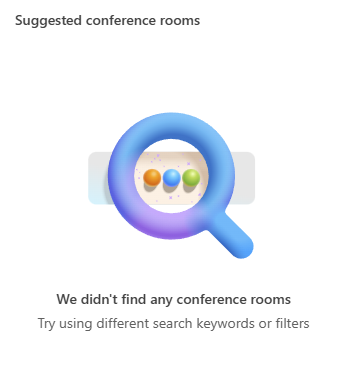
You have created a room resource in Exchange Online. Perhaps you only have a single meeting room in a small business, but you still want bookings to be managed properly rather than relying on guesswork and calendar etiquette. Everything appears to be set up correctly, yet users report that they cannot find the room in Room Finder, even though they can add it by manually typing the room name. While that does technically work, it is hardly intuitive. When a user clicks into the “Add room” field, the first option presented is “Browse all rooms”, which opens Room Finder on the right-hand side. There, they are immediately prompted to select a building, along with other filters, and under “Suggested conference rooms” they are met with an unhelpful void. The room exists, it accepts bookings, and yet the tool designed to help users find it insists that there is nothing to see.
This behaviour shows up consistently across Outlook desktop, Outlook on the web, and Teams meeting scheduling, and it gives the strong impression that something is misconfigured. In most cases, though, nothing is actually broken.
The problem lies in how modern Room Finder works inside Microsoft 365.
Microsoft’s official guidance, documented here:
https://learn.microsoft.com/en-us/troubleshoot/exchange/calendars/conference-rooms-not-displayed
states that the solution is to create a Room List using PowerShell and ensure rooms are members of it. This advice is incomplete.
In practice, you can follow Microsoft’s instructions exactly, create the Room List, add the room, and then wait 24 to 48 hours without seeing any improvement at all. At that point, everything Microsoft documents has been done, and Room Finder is still empty.
The reason is that Room Finder will not display rooms unless they have location metadata defined. In practice, this means more than just a building name. Modern Room Finder is driven by the Places service, and if a room is missing basic address information such as street, city, postcode, and country, it may still fail to appear even when the Building field is populated. There is no warning, no error message, and no indication in the user interface that anything is missing. Instead, the UI simply prompts you to select a building and then quietly returns zero results.
This design choice only really makes sense if Microsoft assumes every tenant is a multinational organisation. Room Finder now behaves as though you have dozens of offices spread across regions and countries, each with multiple floors and hundreds of rooms, all meticulously maintained by a facilities team who live and breathe metadata. In that world, selecting a building first is logical, even necessary.
For a small business or a single-office organisation with one or two meeting rooms and a kettle in the corner, the assumption is frankly absurd. There is no fallback behaviour, no “show all rooms” option, and no hint explaining that the reason nothing appears is simply that the location metadata has never been populated. You are expected to intuit this, presumably after a period of unnecessary troubleshooting and mild despair.
The fix itself is refreshingly simple, once you know where to look. Unfortunately, Microsoft’s own documentation only describes part of the solution, which is why many administrators end up stuck in a holding pattern for days. The missing piece is not set on the mailbox, and it cannot be configured in the admin portal UI. Instead, it lives on the room’s place object and must be configured using PowerShell.
Only after this does the real underlying requirement become apparent: Room Finder will still refuse to surface rooms until the Places metadata is populated.
The first step in diagnosing this is to look at what Exchange currently thinks your rooms look like:
Get-Place | Where-Object { $_.Type -eq "Room" } | Format-Table Identity,Building,City,Street,PostalCode
In most cases, you will see that one or more of the location fields are empty. That emptiness is the entire problem.
To fix it, you must assign both a building and the core location metadata that Room Finder expects:
Set-Place `
  -Identity "Meeting Room 1" `
  -Building "ABC Company HQ" `
  -Street "Alphabet Street" `
  -City "London" `
  -PostalCode "ABC DEF" `
  -CountryOrRegion "United Kingdom" `
  -Floor 1 `
  -Capacity 8
Even after fixing both the Room List and the Places metadata, you must still wait for directory changes to propagate and this takes several hours.
What makes this whole experience feel so broken is that Room Finder requires enterprise-grade metadata before it will show anything at all, and yet the majority of Microsoft 365 customers are NOT enterpise sized organisations! Why Microsoft decided to make this so convoluted and complicated to set-up is anyone’s guess. But hey, that’s Microsoft!